Many tools and controls in CygNet Studio have a text component; some part of the tool shows text to the user, whether the text is numeric, a string, or a combination.
TheView’s Font property defines the default font (font family, font style, and font size) for all tools that have a primary point. However, each instance of a tool on TheView can be assigned a unique font using that object’s Font property. TheView’s default font does not extend to ActiveX controls. When adding an ActiveX control you will have to edit its font property if you want the tool to use a font other than its default. The font property will be included in the ActiveX Properties page on the object’s Property Sheet.
TextTools with a primary point have an AutosizeFont property. When TheView is resized, the object's font resizes according to the selection in this property.
The Alignment property specifies if the text is aligned left, center, or right. The VerticalAlignment property specifies if the text is aligned at the top of the object or center.
The ForeColor property is the font color. However, if the [AlarmElement] property is set to ForeColor and the object is associated with a point, the font color will change in Run mode to reflect the current state of the point. The state colors are determined by the CustomStateColors property. See Displaying Alarm Information.
The [DisplayFormat] property can be used to format the display of a text element. There are various format strings available, depending on the type of data (numeric, date, etc.) input. For example, if a device returns a value with a precision of 3 but you want to show the value with a precision of 1, you can set its [DisplayFormat] to 0.0. See Displaying Service Monitor Point Date/Time.
To add a label to TheView, use the Text Tool and set its [DisplayItem] property to Text. Type the label information in the Text property.
The Text property for many tools can be tokenized. This means that the text string can display dynamic text based on point attributes. Dynamic text is built using tokens, which can represent point configuration, facility, and CVS point record properties. Data formatting can be specified. See Using Text Tokens for more information about building dynamic text using tokens.
CygNet Studio screens support the use of keyboard access keys, which are alphanumeric keys used in conjunction with the Alt key to activate a screen element. They appear as underlined letters on a label, caption, button, or control, etc. As users become familiar with a screen or feature, they are more likely to use access keys to speed up common operations.
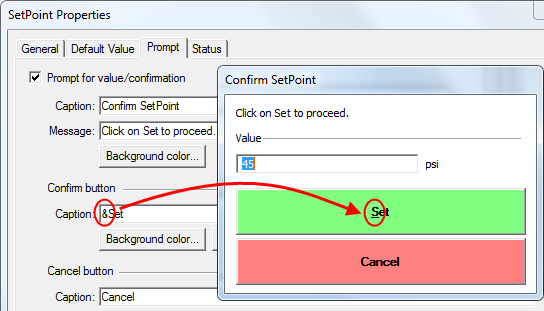
In Edit mode, you can assign access keys to screen elements that require user interaction by placing an ampersand (&) before the letter assigned to the access key. In the example below, the access key for a SetPoint Button prompt Confirm button has been assigned the letter "S" as the access key within the caption, &Set.
In Run mode the user could click the Confirm button, or use Alt+S to facilitate the keyboard access key.
More:
 Displaying Service Monitor Point Date/Time

|
|
|

